

Paste Images Directly Into After Effects, No Saving or Importing Required
Ask any motion designer what slows them down during a normal workday and almost nobody says rendering or keyframing. It’s always the small stuff. The little repeated chores that don’t feel like work but quietly eat your hours. Near the top of that list is one that every After Effects user knows by heart: getting and organizing assets into your project!
The problem everyone has just learned to live with
Think about how many steps it takes to use a single image you found online. You copy it, or you download it. Then you save it somewhere, and you have to decide where, because if you dump it on your desktop you’ll have to clean that up later. Then you switch to After Effects. Then you go File, Import, File, and browse back to wherever you put it. Then you find it in the project panel. Then you drag it into your comp.
That’s seven or eight actions for one image. Do it thirty times in a day, which is completely normal during a busy project, and you’ve spent a real chunk of your time just shuttling files around. None of it is creative. None of it is why you opened After Effects.
What makes this stranger is that almost every other app you use already does this. Paste an image into Photoshop and it just appears. Same with Illustrator, same with Figma, same with a Word document or a Slack message or a PowerPoint slide. Copying a visual and pasting it where you want it is one of the most basic things a computer does, so basic that you stop noticing it. After Effects is the odd one out. Paste an image there and nothing happens, or you get an error, and you’re sent right back to the save and import routine. For an app this powerful, it’s a surprising gap, and it’s one every new user trips over at least once before they accept that this is just how it works.
It’s such a common annoyance that people have literally been asking Adobe to fix it for years. There’s an open feature request on the Adobe community forums titled, almost word for word, “just paste images directly into AE from clipboard.” The demand is obviously there. The workflow just never existed inside After Effects itself.
A simpler idea: just paste!
JustPaste! exists to collapse all of those steps into one. You copy something, you go back to After Effects, and you paste. That’s the whole workflow.
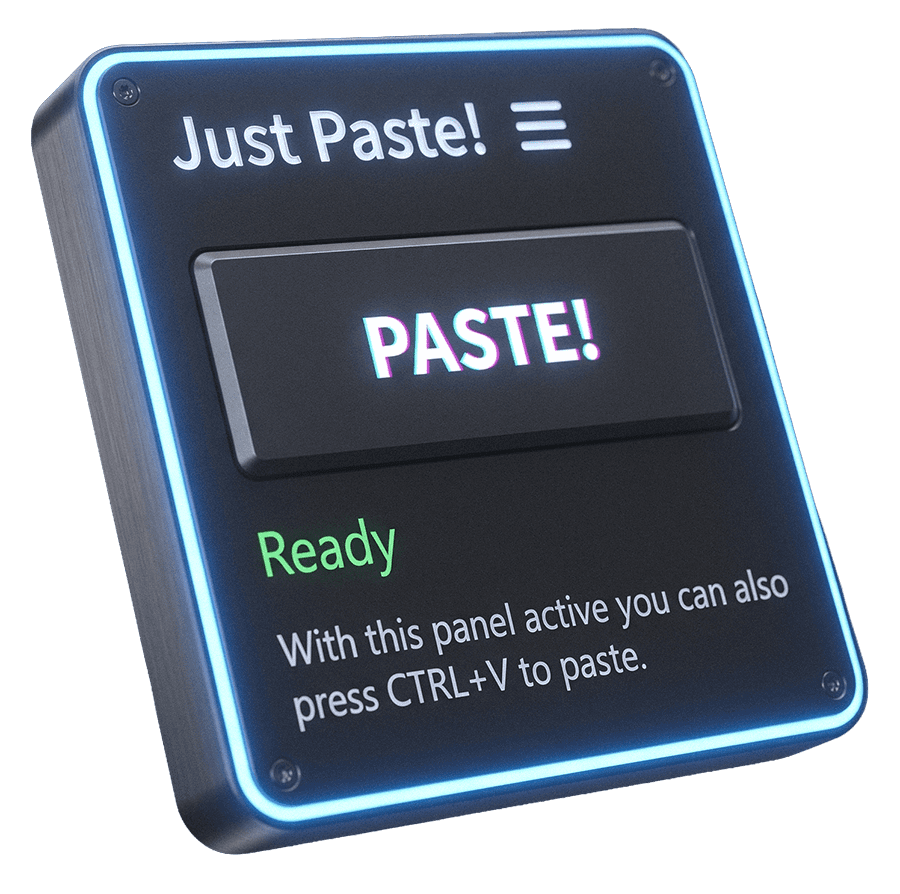
Behind that single action, the extension quietly does everything you used to do by hand. It saves the file right next to your project so nothing gets lost, gives it a sensible name, imports it, and drops it into your active composition as a layer. You can click the big PASTE! button in the panel, or just press Ctrl + V on Windows or Cmd + V on Mac OS while the panel is active. What used to be eight steps becomes zero, because pasting is something your hands already do without thinking.
Built to handle the messy real world, not just the easy case
But yes, there are a lot of “paste to After Effects” tools handle a plain image copied from a browser and stop there. The problem is that real work is messier than that, so JustPaste! was built to deal with the situations that usually break:
Animated GIFs come in actually animated. Normally when you copy a GIF you get a single frozen frame, because the clipboard only hands over a still preview. JustPaste! goes after the real GIF behind it, so it lands in your comp still moving.
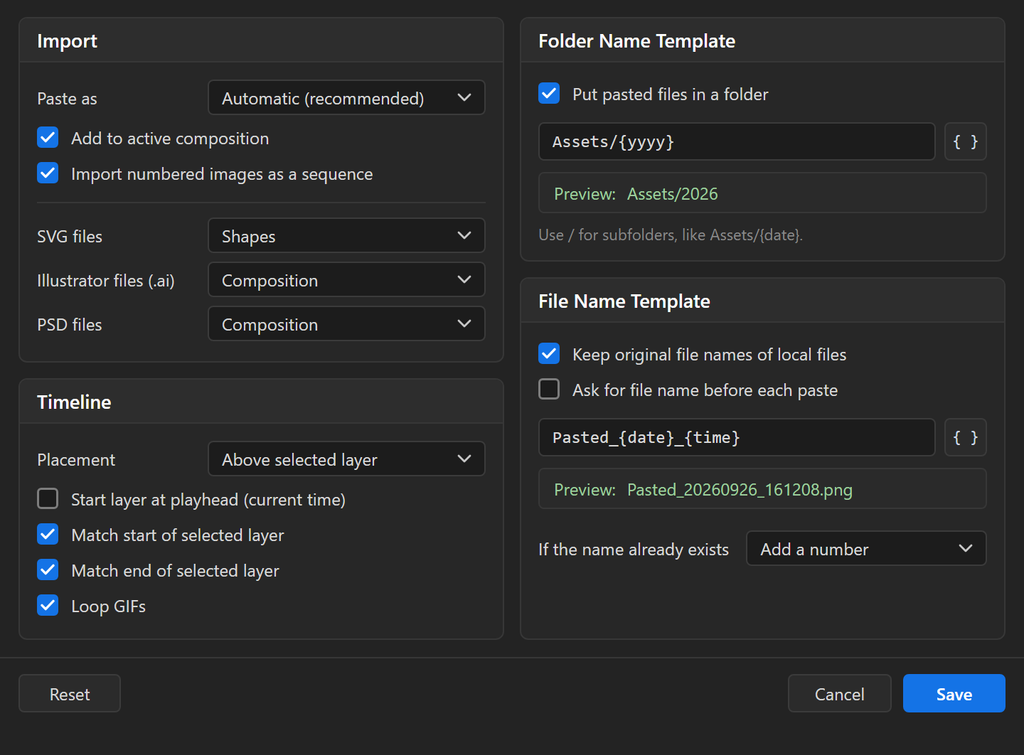
Vectors stay vectors. Copy an SVG, either as raw code or straight from Figma or Illustrator, and on After Effects 2026 and newer it imports as a true vector. It can even convert automatically into editable shape layers, so a logo someone sent you as an SVG becomes something you can actually animate instead of a flat picture.
You can paste real files, not just clipboard images. Select a group of files in Finder or Explorer, images, PSDs, Illustrator files, video like MOV and MP4, even audio, and paste them all at once. Copy five files and all five come in together as a single undo step, so one Ctrl+Z cleans up the whole thing if you change your mind. By default those files even keep their original names, so client_logo_final stays client_logo_final instead of becoming a random string.
The details that keep a project tidy
Speed is the headline, but a paste tool is only useful if it doesn’t turn your project into a mess. So there’s a set of options for people who care about organization, and if you’re reading this, you probably do.
You decide where a pasted layer lands, top of the stack, bottom, or right above or below the layer you have selected, and you can match its timing to the playhead or to a neighboring layer. Pasted files can be tucked into a named folder automatically, both on disk and inside your project panel, so assets never pile up loose.
There’s also a naming template system with tokens for date, time, and an auto incrementing counter if you like consistent filenames. And when a name already exists, you choose what happens: add a number, overwrite, or skip.
None of this gets in your way. The defaults are sensible, so most people paste and never open the settings at all. It’s there for when you want it.
Works on Windows and Mac
JustPaste! runs on both Windows and macOS, and the experience is the same on each. It supports After Effects CC 2019 and up, with the SVG features requiring After Effects 2026, since that’s the version where Adobe finally added native SVG import.
Try it
If any part of this sounds familiar, especially that reflex of sighing before you import yet another image, JustPaste! is available now on aescripts:
https://aescripts.com/justpaste
Update 1.2 Teaser Video
Update 2.0.0 Teaser Video
Comments are closed.