

How to Copy any SVG Element From a Website in One Click (Copy as SVG)
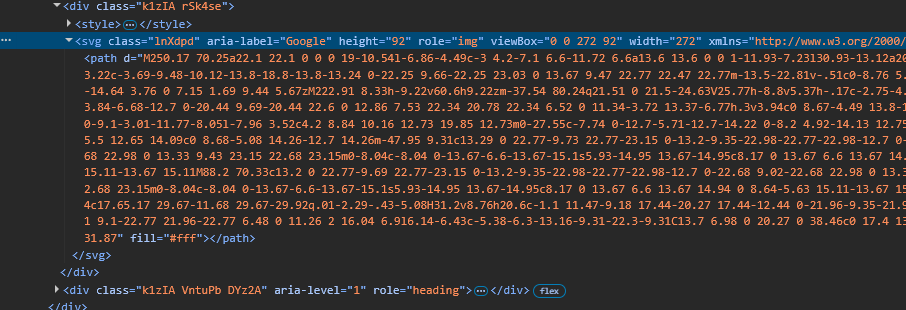
If you have ever seen a clean icon or a nice piece of vector art on a website and wanted to reuse it in a project, maybe to recreate an interface or a mockup, you already know how annoying the process can be. You open the developer tools, dig through the DOM until you find the right svg tag, expand it, try to select the whole thing without missing a closing tag, copy it, paste it somewhere, and hope it actually renders. Half the time it comes out black or empty because the colors were coming from a stylesheet that got left behind.
For something as simple as grabbing a shape off a page, that is a lot of steps. That is the exact problem this extension called Copy as SVG is built to remove.
The problem with copying SVGs from the web
SVG is everywhere now. Most modern websites use it for logos, icons, illustrations, charts, and UI elements because it stays sharp at any size and keeps file sizes small. The catch is that SVG on a live page is rarely self contained.
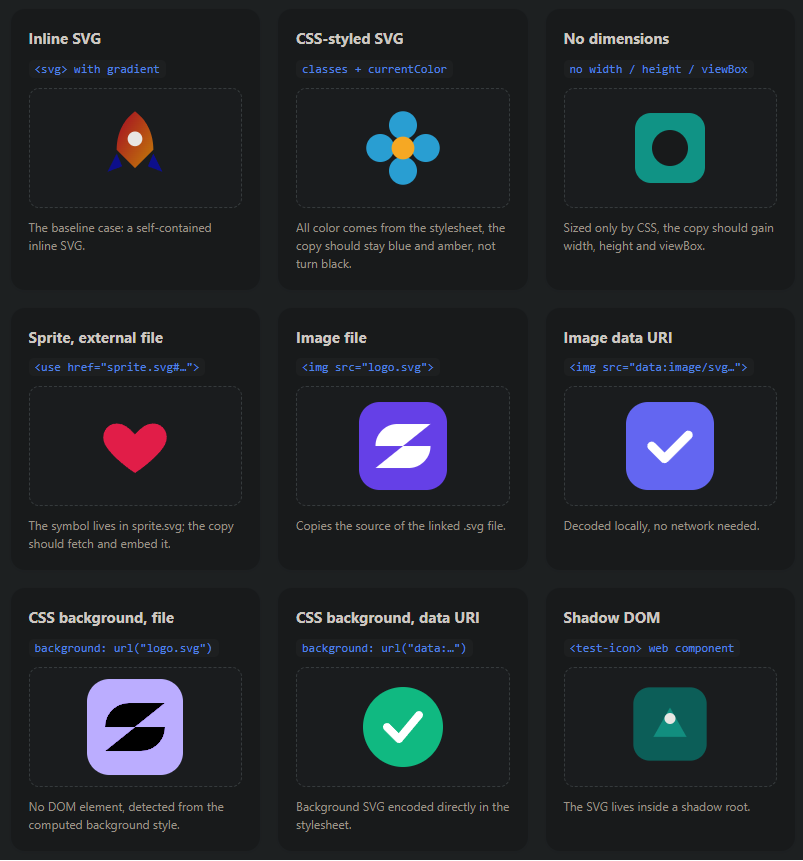
A single icon might pull its color from a CSS class instead of having it written on the shape itself. It might rely on currentColor, which only means something while it sits inside that page. It might be a sprite, where the actual artwork lives somewhere else in the document and the icon just points to it with a reference. Some SVGs do not even have a width or height set because the page controls their size from the outside.
None of that matters while the graphic is on its home page. But the moment you copy the raw markup and paste it into Figma or a code editor, all of that context disappears. The colors fall back to black, the sprite reference breaks, and the dimensions are gone. What looked great on the website turns into a broken shape in your file.
What Copy as SVG does
Copy as SVG is a lightweight Chrome extension that adds a single option to your right click menu. When your cursor is over an SVG, you right click, choose Copy as SVG (much like what we in Copy Image), and the full source is on your clipboard. From there you paste it straight into Figma, Illustrator, After Effects, Affinity, VS Code, or you name it, anywhere else that understands SVG.
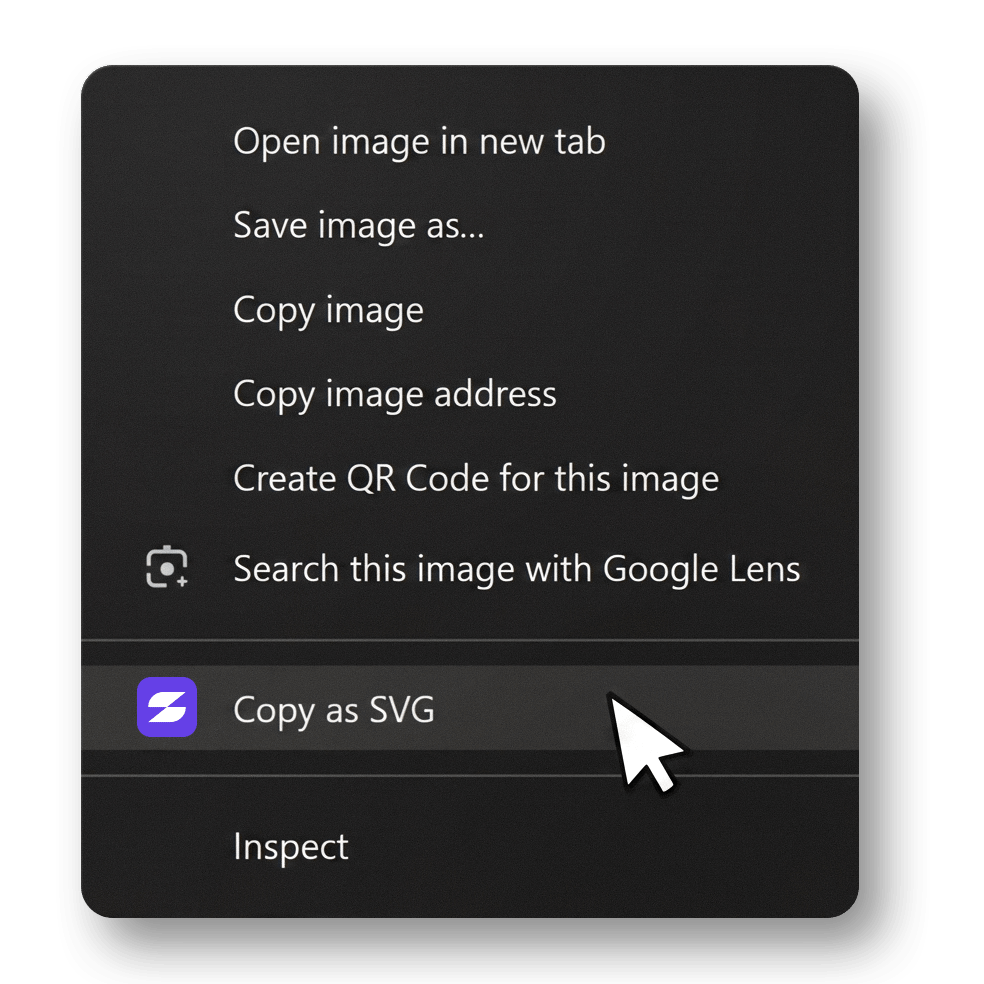
The menu item only shows up when you are actually hovering over a graphic it can copy, so it stays out of your way the rest of the time.
The part that makes it genuinely useful is what happens behind that one click. Instead of grabbing the raw tag and hoping for the best, it rebuilds the SVG so it survives on its own. It reads the styles the page was applying and writes them directly onto the shapes, so a blue icon stays blue instead of turning black. If the graphic is a sprite that points to artwork elsewhere, it pulls that artwork in and embeds it. If the SVG has no size of its own, it fills in the width, height, and viewBox based on how big it was on screen, so design tools bring it in at the right dimensions.
In other words, it copies what you actually see, not just the markup underneath it.
It works with more than just inline SVG
Vectors show up on the web in a lot of different forms, and the extension is built to handle them. It works with inline svg elements, SVG files loaded through an image tag, SVGs embedded with object or embed tags, and even SVGs used as CSS background images. It also reaches into places that normally trip up copy tools, like graphics inside iframes and icons tucked into shadow DOM on modern component based sites.
For anything that already lives in a separate file, there is also a small download button in the confirmation popup. That is handy for tools like Illustrator that prefer opening an actual svg file over pasting markup.

Who this is for
Designers who want to pull references and assets from around the web without rebuilding them by hand. Developers who need a quick clean copy of an icon without opening dev tools and wasting a lot of time. Anyone who works with vector graphics and is tired of the copy, paste, fix the colors, fix the size routine.
If you touch SVG in your day to day work, this turns a five step chore into a single click.
Try it out
You can install Copy as SVG for free from the Chrome Web Store here:
Next time you spot an icon or illustration you want to keep, skip the dev tools.
Just right click and Copy as SVG!
Comments are closed.